When participating in a 360 Performance Review you will be required to fill out 360 Feedback Forms for yourself and/or others in your organization.
Accessing SuccessFactors
Prior to the review window you will receive an email with your login information for SuccessFactors.
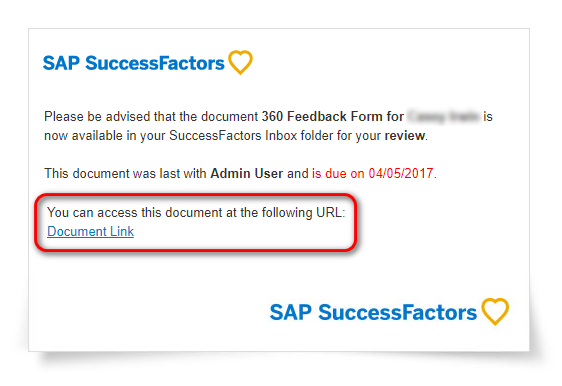
When the window begins you will receive an email notification with a link to the 360 Feedback Form and details of when it is due to be completed.
Simply click the “Document Link” at the bottom of the email to begin.
If you have problems logging into SuccessFactors please try Resetting Your SuccessFactors Password or contact us at hr@workforcewins.com.
Completing the 360 Feedback Form
Once you login to SuccessFactors you will be taken directly to the 360 Feedback Form. Review the introduction and instructions before starting the form.
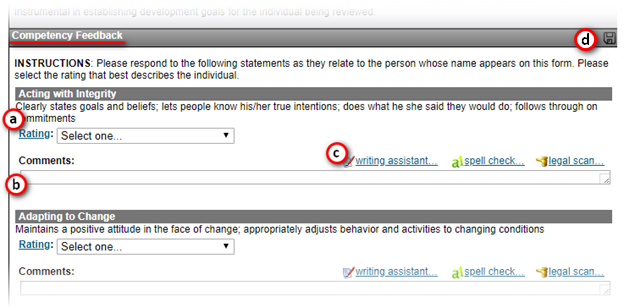
To begin completing the form scroll down to the “Competency Feedback” section.
For each competency:
a) Select the performance rating you feel is applicable.
b) Add comments for competencies you feel are important to provide additional feedback on. This is typically for those that are above or below the “Effective” rating.
c) The writing assistant can help you with developing effective comments.
d) At any point while completing the form you can save your progress by clicking the save icon.
To leave and save your progress scroll to the bottom of the page and click the “Save and Close” button. Clicking “Close Without Saving” will exit the form without saving any progress since your last save.

Once you have completed the form and are happy with all the changes click “Submit Finished Form”.
Questions
If you have any additional questions about how this process works please email us at hr@workforcewins.com.