Check-ins
- Check-ins are the daily act of 'checking in' to see if there are any tasks to complete that day.
- If the Check-In results in no pending work the check-in session will be clocked in Bamboo at 10 minutes. It is incumbent on the VA to manage check-ins such that they can be completed within the 10 minutes allowed. Until this proficiency is achieved the company will pay the full time taken for check-ins.
- If the Check-In results in work being required the session will be clocked in Bamboo from the start of the Check-In to the greater of 10 minutes or the actual length of the session.
- Notify the CSM if a daily check-in cannot be completed.
- What applications need you check at each check-in? Your WorkforcWins email, hr@workforcrwins.com, and zendesk.
Time Tracking for Payroll
Accurate, to-the-minute, tracking of job times is critical for the valuable management information it provides, and to manage employment arrangements with multiple pay rates.
- All time must be tracked, including daily check-ins.
- Split out time entries among jobs for which different wage rates apply.
- Add a consistent notation beside time entries for which any premium wage applies.
Use of Smartphone Apps
- Consider conducting check-ins on your smartphone to minimize the time requirement as follows:
- Bamboo: Your time entries
- Zendesk: New tickets, Ticket updates, Ticket follow-up dates.
- RightSignature: Documents completion status.
- MSOutlook: Email to hr@workforcewins.com
Task Management
- If you are not 100% certain of how to manage a given step in a process, confer with the CSM before acting.
- Tasks must be addressed within twenty-eight (28) business hours of the follow-up date set in process checklist or by requester.
- If a follow-up date for you falls on a non-business day (a weekend or stat day observed by WorkforceWins), move it out to the next business day.
- If a follow-up date for a step for the client is counted based on calendar days, the fact that it may fall on a weekend or stat day is not a concern.
- Archive all files from your desktop to a 'Desktop Archive' folder once used. (Avoids a cluttered desktop and creates redundancy.)
- When the process checklist is fully complete, submit the zendesk ticket as 'Solved.'
HR Transactions
- Include any pertinent information related to a task in the Zendesk ticket as an 'Internal Note'. This includes communications to or from the client, preferences, or other information that can provide context and a historical record outside of the Process Street checklist.
- Notes are not required for straight-forward, one-way processes that do not require additional context outside of the checklist.
Managing Emails to hr@workforcewins.com
- Emails associated with your tickets typically arrive to this address.
- This address acts as a sort of a clearing house for emails.
- The CSM takes the ones that belong to them and moves any that are associated with the tickets of any VA to the folder called 'AA - VA Folder.'
- Once you are have finished using any emails, move them to the sub-folder called 'Completed.'
Communications with the Client
- Do not have any communications with the client that are not approved by the CSM or specified in a task.
- Be upbeat and polite at all times and never been drawn into any negativity.
- Confer with CSM if the client expresses any out of the ordinary frustration/attitude.
- Recognize all client communications with a reply. Most notably, when the client delivers on a request, say thank you.
- Do not sign your name or identify yourself in any communications.
Changes to Stack Setup
- Do not make any changes to any elements of any process or software setup.
- Please do however bring forward any ideas you have for changes/improvements to processes.
WorkforceWins Issued PC
- Do not make any material changes to the set-up of the PC.
- It is for work use only.
- Turn it off between uses (Office 365 can behave badly when the PC is left on over night.)
Smartphone Security
- Phone must have a screen lock password set up (with a suitably secure password) to protect against access to the content of any apps if the phone is lost or stolen.
Document Folders in Bamboo
There are numerous folders to choose from under the employee profile for uploading files to. Clear instructions on which folder ought to to be used in any given process is still a work in progress. Here are some guidelines:
- Follow strictly any specific instructions in the process for which folder to use.
- Documents signed within the Bamboo native e-signature capabilities automatically be stored in the 'Signed Documents' folder. Leave them there.
- If there is no clear direction on which folder to use follow these guidelines:
- Use the Confidential folder for: ERW's, LOC/W, Doctor's notes, Medical opinions, communications to the company from the employee with sensitive info. Basically, in in doubt, use this folder.
- Otherwise, use the most relevant folder per your judgement.
- Leave the Employee Uploads folder exclusively use of Employees.
RightSignature
Documents Setup
In cases where there are two or more signers, the signer who represents the company always signs last (put another way, the Employee or Employment Candidate signs first). There is one exception: Employee Review Workbooks are signed by the Supervisor first.
Signed Document Version
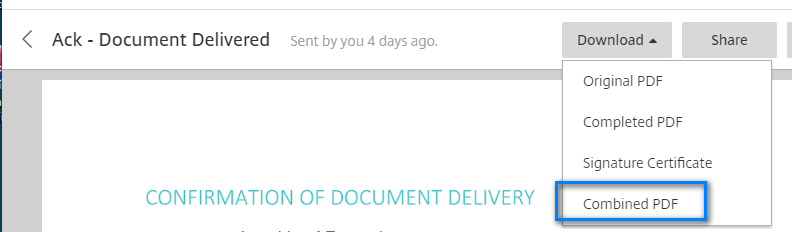
Unless specified differently, our processes call for the version of the signed document that includes the original document, signature(s) and the signature certificate.
Internal Communications
- The objective is to phase out email for internal communications.
- Communications that regard a specific zendesk ticket ought to be done directly within the ticket.
- Communications with one or more WFW team members ought to be done within Teams.
Printing of Physical Documents
- Do not print documents - especially at home.
- If you do print them (at home or in the office), shred them immediately after use.
Aborting a Zendesk Ticket
In rare cases an hr process must be ended before full completion of the checklist. A common example is when a contracting and onboarding checklist is started and the candidate ultimately decides not to join the company. In these cases we Archive the checklist in Process Street and make the zendesk ticket as 'solved' with a note on why we prematurely ended the process. We also must end any actions that might be in play from the processes such as voiding Right Signature docs.